
Capital Guardians API setup with Services Australia
Capital Guardians needs to be given permission to be setup with Aged Care Web Services (Services Australia), via their PRODA system to allow:
- Real-time client statements on the Capital Guardians platform; and
- Client co-contribution rates for independence and everyday expenses
The setup is as follows:
Step 1: Set up your PRODA account
Before you can integrate with the Aged Care Provider Portal, you’ll need to complete Step 1 from Services Australia’s setup guide.
Please note: A Director or authorised representative from your organisation must create and manage the PRODA account. They’ll need full access to complete the setup.
To enable Capital Guardians to successfully sync with the Aged Care Web Services (Services Australia), please review the following:
- Step 1 from the Set up aged care web services software configuration guide > Set up your organisation functions.
- Add and link a service provider to your organisation in PRODA.
- Follow the steps as provided. When selecting the service provider, please select Aged Care Web Services.
Please note that only a Director or an authorised representative in your organisation with the Service-Link-Management attribute can add service providers to your organisation in PRODA.
Once these steps are completed, and the data becomes available from Services Australia, Lookout will begin syncing client contributions, supplements, budget allowances, and levels.
If you have any questions or issues during this step, please contact Services Australia directly.
The following support channels are available:
- Aged Care Helpdesk – 1800 195 206
- PRODA – Call eBusiness on 1800 700 199 select Option 1
Steps 2, 3, and 4:
You’ll also need to complete Steps 2 to 4 from Services Australia’s setup guide. The detail Capital Guardians needs to provide are:
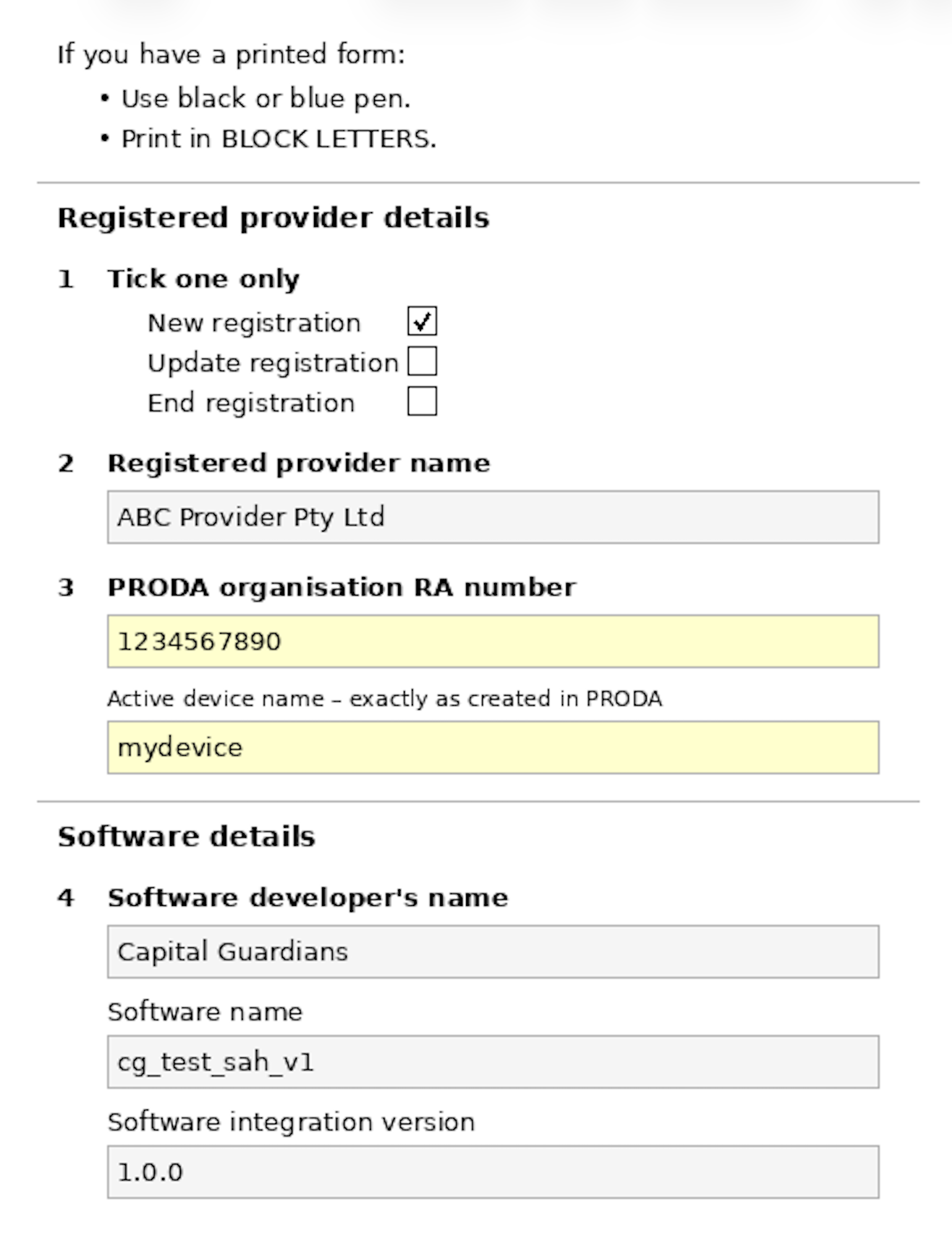
- Registered Provider Name: The name you have used for the AGED CARE PORTAL
- Your PRODA organisation RA number
- Your Active Device Name – exactly as in PRODA
- Software vendor name: Capital Guardians
- Software name: cg_test_sh_v1
- Software integration version: 1.0.0
For your convenience, we have pre-filled the AC027 form with the above information and attached here: AC027 form
Having trouble with the AC027 form not being pre-filled? If you’re opening the form in Microsoft Edge, that might be the reason – Edge doesn’t fully support pre-filled PDFs.
Here’s what you can do instead:
- Try opening the form in Google Chrome, which does support pre-filled PDFs.
or - Download the PDF to your computer, go to your Downloads folder, and open it using Adobe Acrobat or another dedicated PDF reader.
We recommend using “cgintegration” as the Device Name. However, if you’ve already set up a different Device Name, that’s fine, just make sure it matches exactly on both the Aged Care Provider Portal and the AC027 form.
There’s a checkbox on the form to tick if this is a new, update or end registration. Please tick the New registration box, as this is the first time connecting your organisation with Lookout via PRODA. For future updates, you will select the Update box.
As this form is to configure your integration with Lookout, in section five of the form, you only need to add the service IDs that use “Support at Home” and not select anything else except “Support at Home”.
Please note: The signature required on the AC027 form must be that of a Director or key personnel.
If multiple instances share the same NAPS ID, a separate device is required for each instance.
When submitting the AC027, only one device is permitted, choose one device for the form, and when submitting this to Services Australia, send the other device names along in the email to Services Australia.
It is currently taking Services Australia 3 – 4 days to process the forms. You will receive an email from Services Australia once the form is processed.
Step 5:
This is where you’ll input details into Capital Guardians to finalise the setup. You must complete this step on the same day as steps 2, 3, and 4. This is due to the Device Activation code expiring after 24 hours. This step can be completed while waiting for the AC027 form to be processed.
What You’ll Need to Do:
A Registered Provider admin will need to contact the CTO of Capital Guardians, cto@capitalguardians.com with the required details:
-
- Device Activation Code
- Device name
- PRODA RA (Organisation)


